BullionStar's AutoInvest feature lets you set up recurring purchases of your favourite bullion products including the Bullion Savings Program (BSP). Instead of placing a one-time order, you can schedule automatic buys on a weekly, bi-weekly, monthly, or quarterly basis.
Each AutoInvest order is placed at BullionStar’s prevailing customer buy price at the time of execution, including any quantity tier discounts.
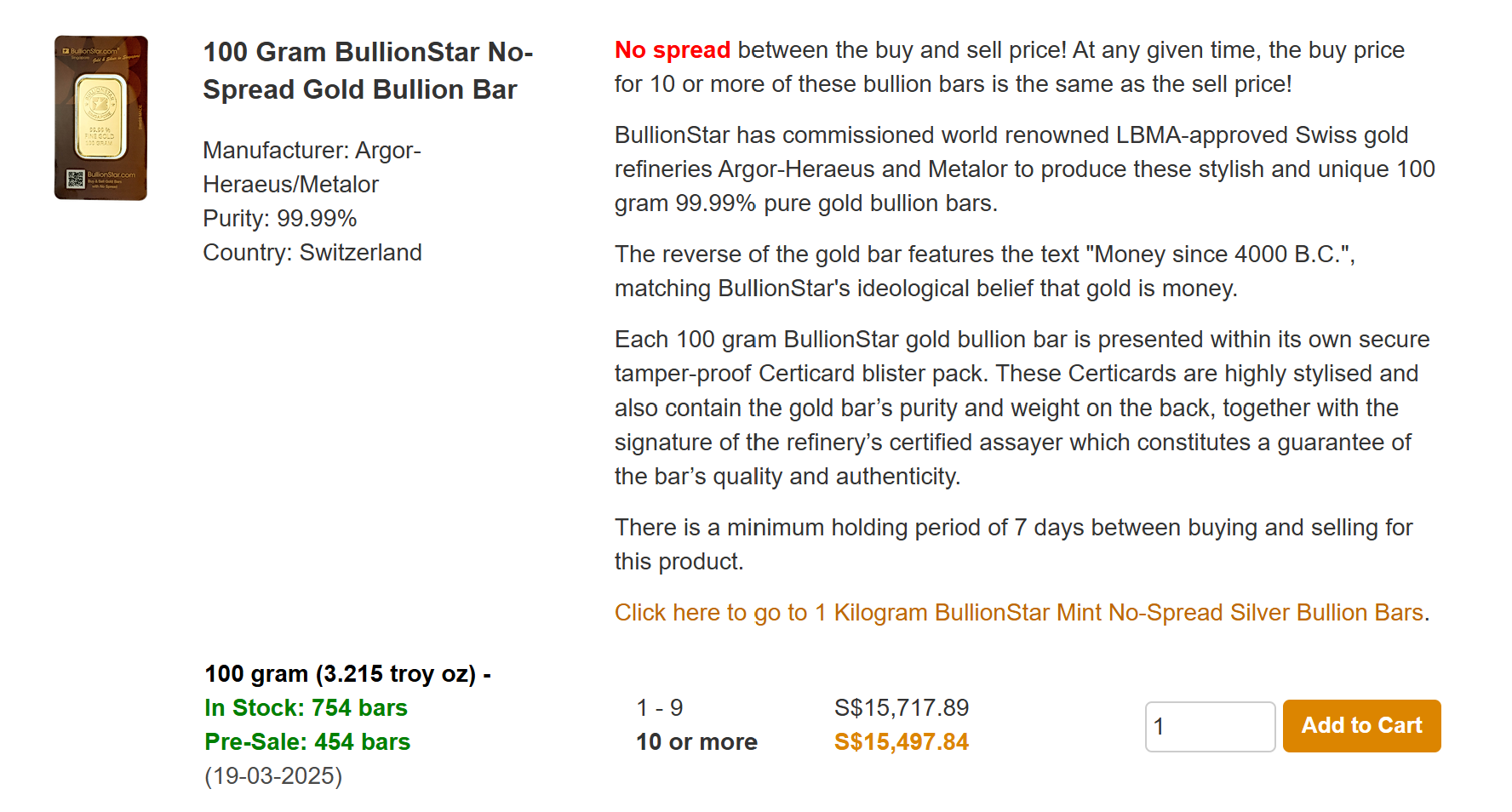
Step 1: Add your desired products to your cart.
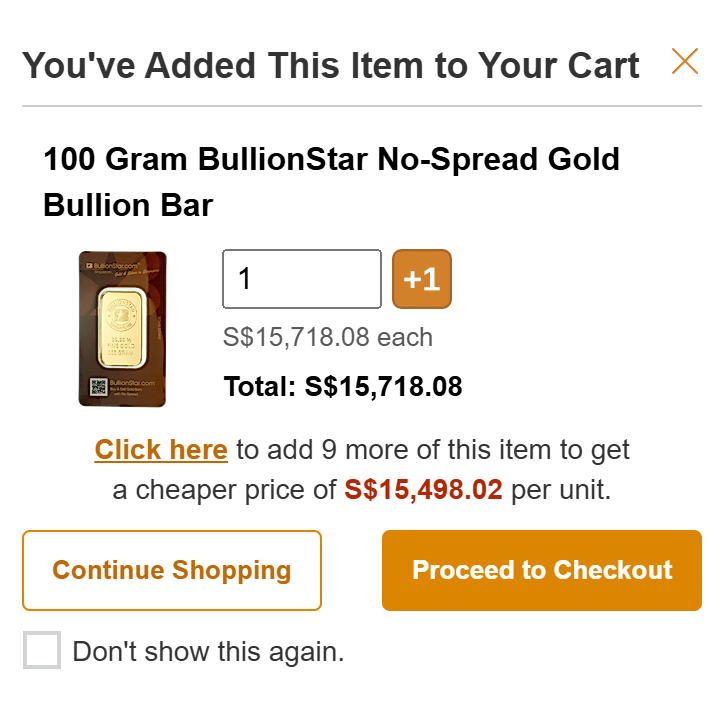
Step 2: On the pop up, click "Continue Shopping" to keep browsing for more items. If you are done selecting products, click "Proceed to Checkout".
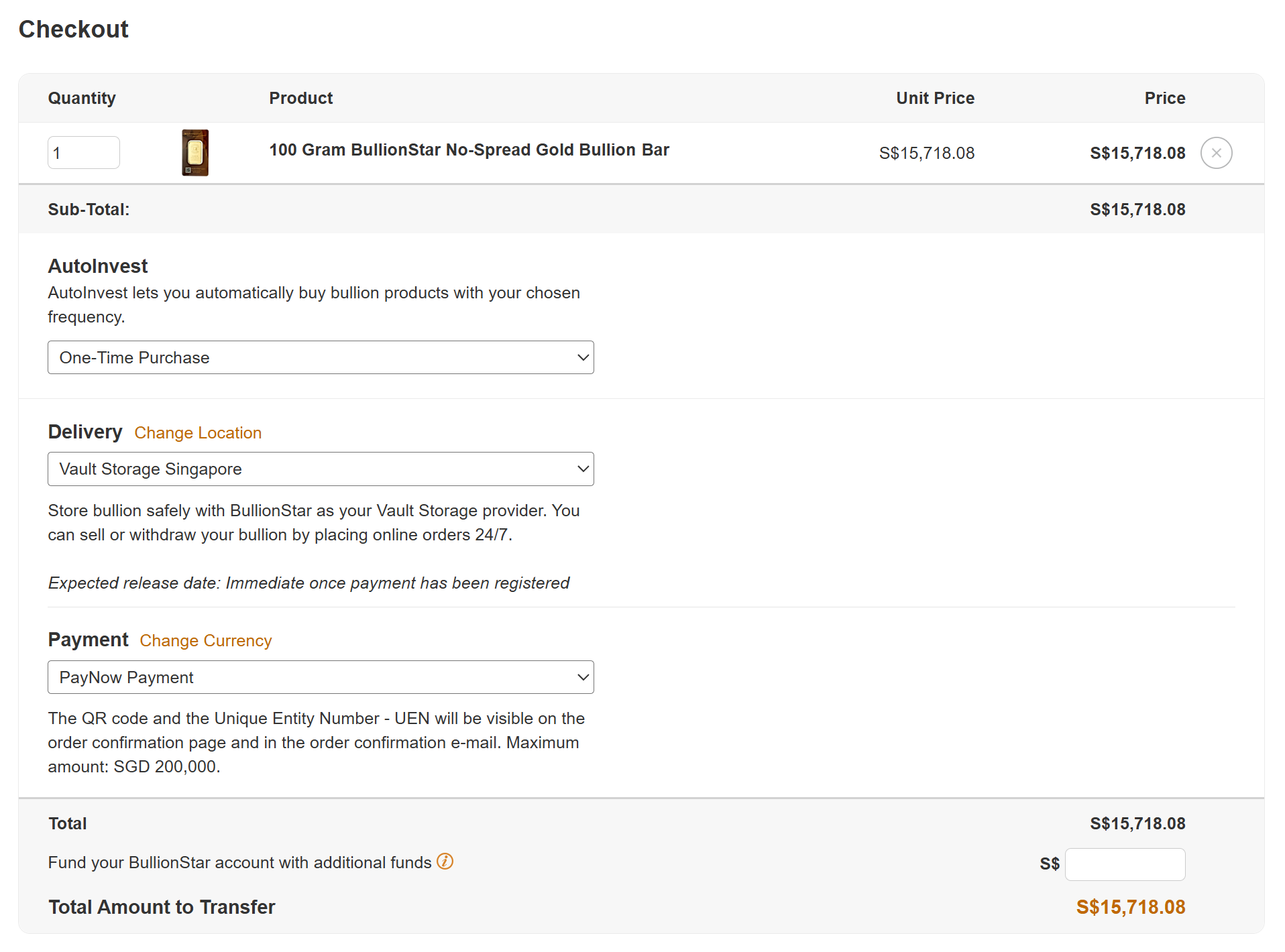
Step 3: You will see the checkout page.
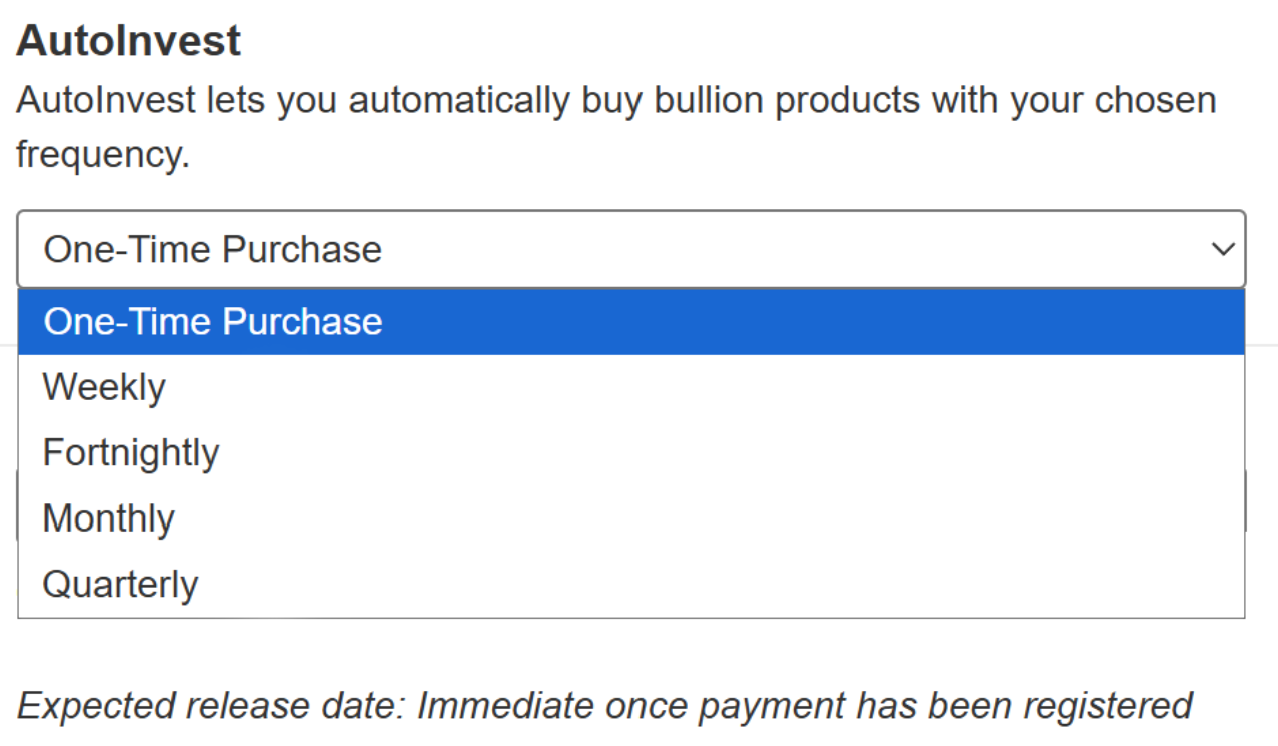
Step 4: Select your AutoInvest frequency.
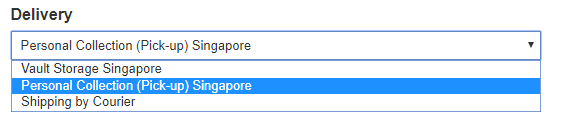
Step 5: Select delivery method by clicking on the drop-down box under Delivery using the arrow on the right-hand side. You can opt to have your purchased items stored in Vault Storage, personally collect (pick up) your products, or have your purchased items shipped to you by Courier.
Note that if you have placed an order for the BullionStar Savings Program (BSP), the only delivery option available will be Vault Storage.
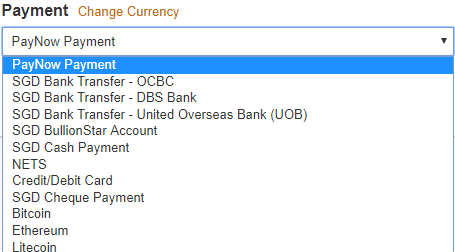
Step 6: Select payment method by clicking on the drop-down box under Payment using the arrow on the right-hand side. All of BullionStar's ordinary payment methods, including cryptocurrency, are available.
Note that you can change the currency you wish to pay in by clicking the "Change Currency" link next to the Payment heading. Available currencies include SGD, USD, EUR, GBP, AUD, NZD, SEK, JPY, as well as the cryptocurrencies BTC, ETH, BCH and LTC.
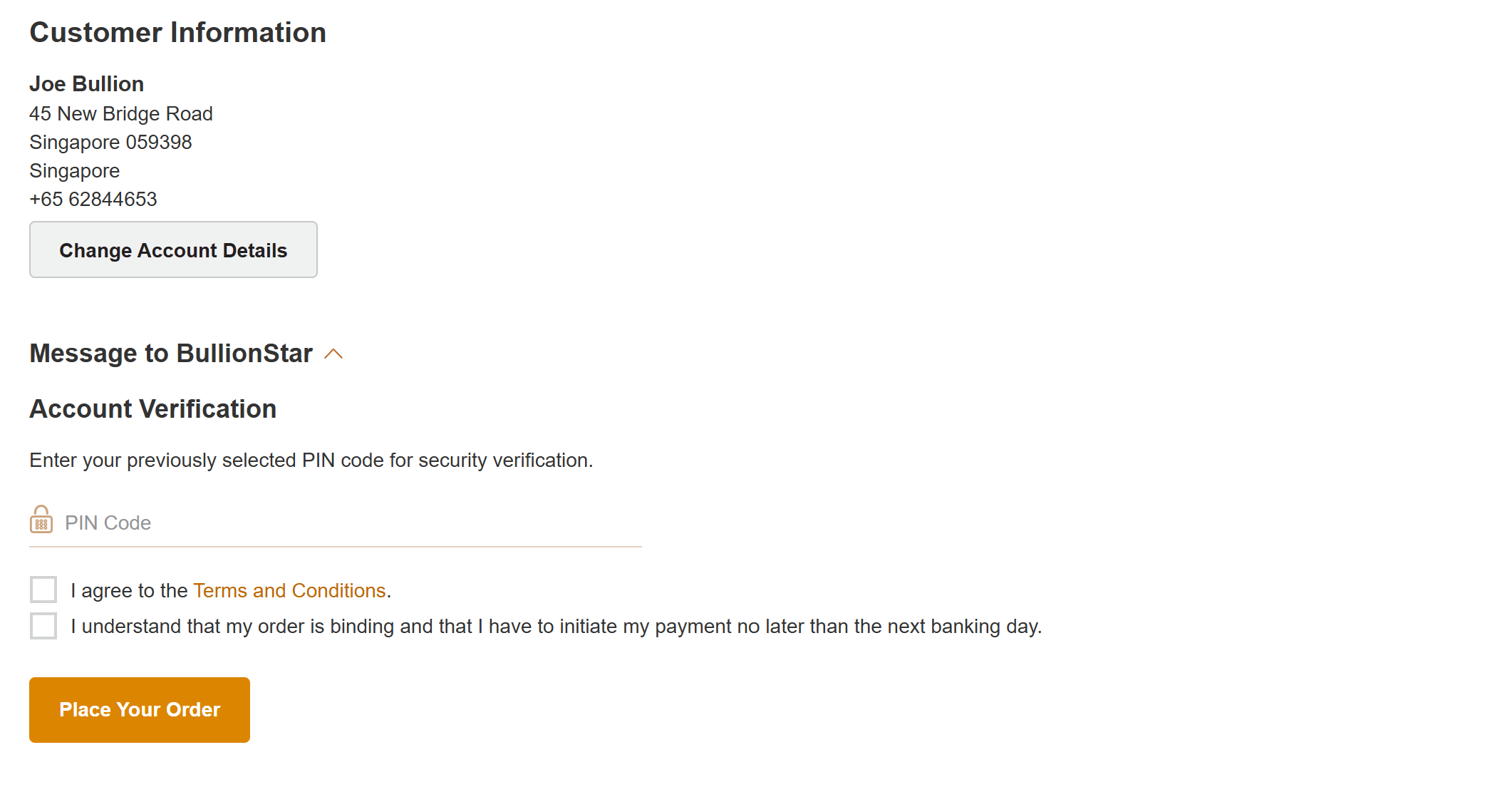
Step 7: If you are logged in, your registered address will be your default customer/shipping address and will be displayed under Customer Information. If you would like to have your order shipped to another address, you can click the checkbox for "Ship to a Different Address" and fill in your shipping address.
If you are yet to create an account, fill in the empty fields under "Customer Information". If you are logged out but have created an account previously, please log in. If you are placing an order for Vault Storage for the first time, you will also have to select a PIN code which will be mandatory to enter in subsequent transactions. If you have previously selected your PIN code, input the PIN code under "Account Verification" if requested.
Step 8: Read the Terms And Conditions. If you agree, check the relevant checkbox. Then confirm that your order is binding by checking the acknowledgment box. Finally click "Place Your Order" to submit your order.
Step 9: An order confirmation will appear. Your order number as well as the payment instructions can be found on the order confirmation. The order confirmation will also be sent to your e-mail address and as an SMS text message to your mobile phone number. If you purchased products for vault storage, your products will immediately be visible under your Cash & Bullion Dashboard as payment pending. We will process your order once your payment has been received.
We use cookies to enhance the user experience, analyse traffic and handle essential functionality. By using our website, you accept that cookies are used. Learn more in our Privacy Policy.
 Contact
 Help
Help





 Search