How can we help? Ask a question or describe a problem you're having.
-
Buy Gold & Silver from BullionStar
- BullionStar at a Glance
- Learn How to Buy Precious Metals From BullionStar in Four Easy Steps
- Buying Gold & Silver from BullionStar - Detailed Guide
- Payment & Payment Methods
- A Guide to Paying For Your BullionStar Order With Crypto
- Storing & Delivering Precious Metals in the United States
- United States Gold & Silver Bullion Sales Tax
- Buying Gold & Silver For Your IRA Retirement Account
- How BullionStar Ensures Your Privacy & Confidentiality
- Earn Commissions With BullionStar’s Affiliate Program
- Buy Precious Metals from BullionStar in the US – FAQ
- Contact Us
-
BullionStar Account
- How to Set Up a BullionStar Account in Just a Few Seconds
- Keeping Funds on Your BullionStar Account
- How to Fund Your BullionStar Account
- How to Withdraw Funds From Your BullionStar Account
- How to Sell Bullion with the Proceeds Paid to Your BullionStar Account
- Adding a Joint Account Holder to Your BullionStar Account
- Using Two-Factor Authentication (2FA)
- Frequently Asked Questions
- BullionStar AutoInvest
- Our Products
-
Vault Storage
- Storing Precious Metals With BullionStar
- Bullion Storage in the United States
- BullionStar's Vault in the United States
- Precious Metals Storage Options
- Direct Legal Ownership
- How We Allocate Bullion in Our Vaults
- Vault Insurance Procedures & Policies
- Bullion Audit Procedures & Policies
- How to Buy Gold & Silver for Vault Storage
- How to Sell Bullion in Vault Storage
- How to Withdraw Bullion from Vault Storage
- Convert/Withdraw BSP Grams
- IT & Account Security Policies & Procedures
- In Case of Death
- Storage Fee Schedule
- Sell To BullionStar
- About BullionStar
- Terms & Conditions
How to Modify, Skip or Cancel Your AutoInvest Orders
BullionStar’s AutoInvest lets you maintain recurring bullion purchases, with the flexibility to adjust effortlessly as your plans change.
You can modify or cancel your AutoInvest schedule at any time. Update the order frequency, change your payment method, skip upcoming orders, or stop the schedule entirely.
How to Modify Your AutoInvest Order
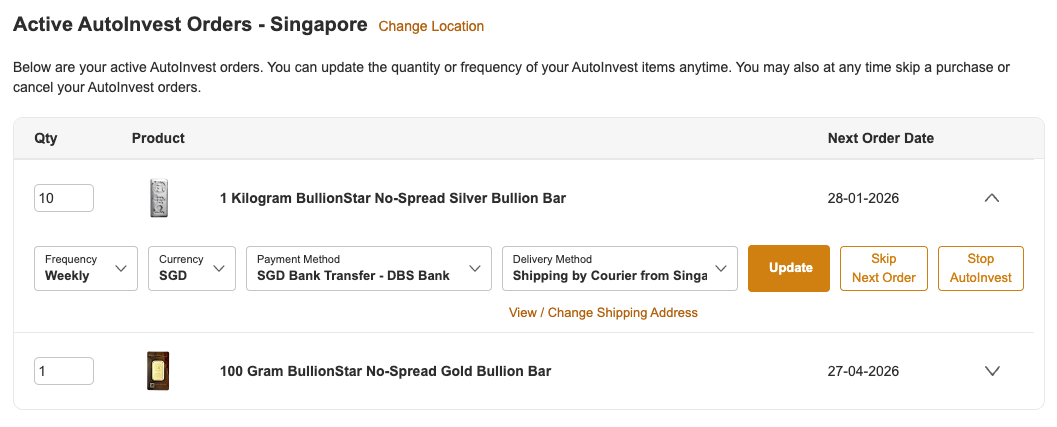
Step 1: Go to Your Account > AutoInvest to view and manage all your active AutoInvest activities.

Step 2: This page allows you to modify the quantity, frequency, currency, payment method, and delivery method for each product in your active AutoInvest orders.
Step 3: Click "Update" to save your changes. You will receive a pop-up message confirming that your settings have been updated.
How to Skip Your Next AutoInvest Order
Step 1: Go to Your Account > AutoInvest.
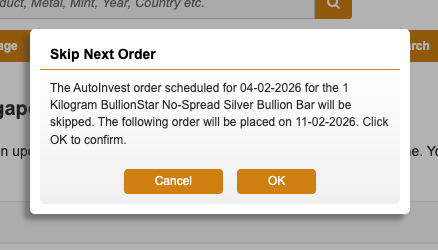
Step 2: Click the "Skip Next Order" button for the item you would like to skip. A pop-up message will appear. Click "OK" to skip the next AutoInvest order for that item.

How to Cancel Your AutoInvest Order
Step 1: Go to Your Account > AutoInvest.
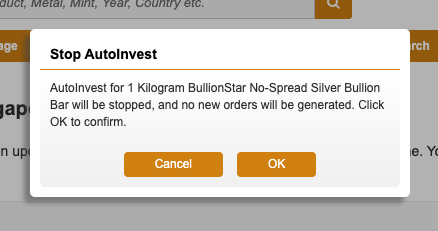
Step 2: Click the "Stop AutoInvest" button next to the item you would like to cancel. A pop-up message will appear. Click "OK" to confirm that AutoInvest for this item will be stopped.

Related Topics:
How to Buy Gold and Silver with AutoInvest